How to Build an AI Client Onboarding Portal with Claude Code
You build an AI onboarding portal by describing it to Claude Code in plain language, approving a plan, connecting a few API keys, then testing the admin side and the client side. Each new client gets a private, password protected link to onboard themselves, and their answers trigger research, scripts, image ads and a Google Drive workspace.
Video chapters 6
- The portal has two experiences: an admin view where you add clients, and a private client view where they onboard themselves.
- You can write the first prompt by voice, in plain language, with no technical detail.
- Spend longer on the plan than feels natural. Fixing a misunderstanding later costs more.
- Three kinds of keys connect it: an AI key, an image generation key and Google credentials. Treat them like passwords.
- Expect a first version that mostly works, then use feedback prompts to fix what is missing.
What is an AI onboarding portal for an agency?
It is an internal tool with two sides. The admin side is for the agency owner. When a new client closes, the admin adds them with a few details: their website, where they are based and some notes from the sales call. The client side is a private portal. The admin sends the client a link and a password, and the client works through an onboarding funnel that checks them in.
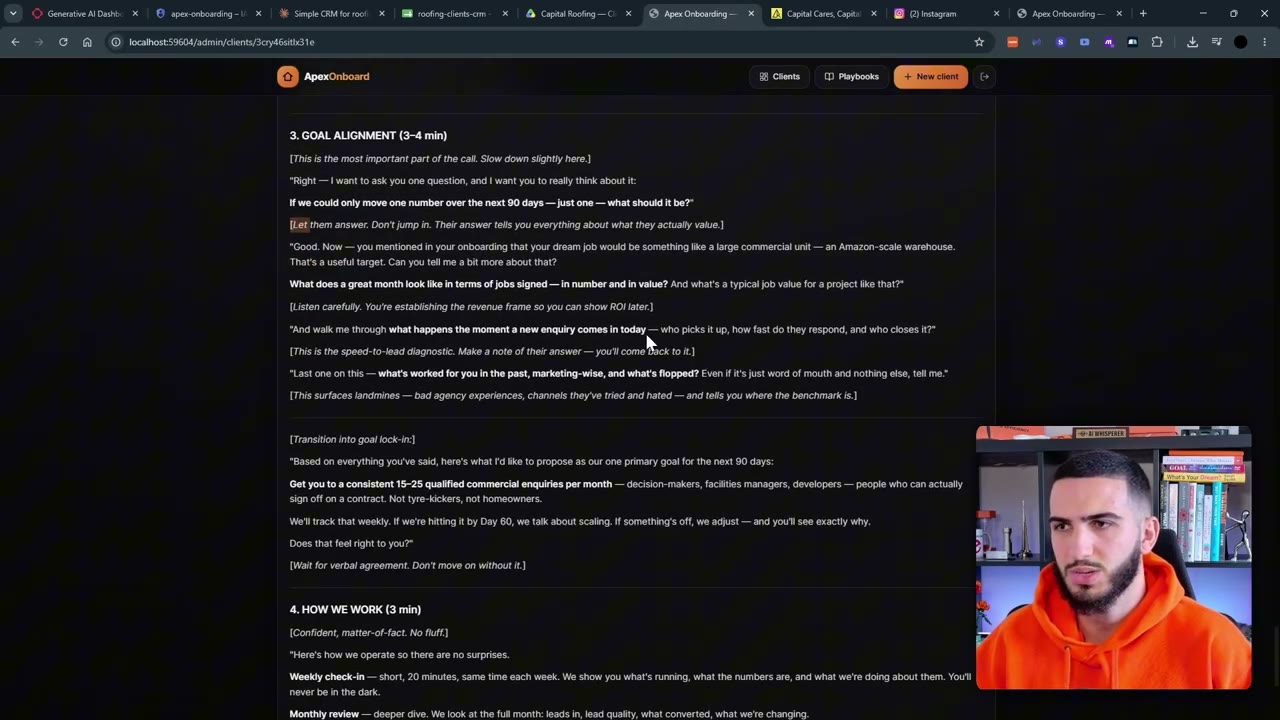
The funnel is a form, but a well designed one. It is broken into steps and feels interactive, so it is a better first experience than a long document. When the client submits, everything goes back into the admin system, and the admin can run the follow up work from there: deeper research on the client, video scripts based on your playbooks, image ads built from the files the client uploaded, a CRM update and a kickoff call script.
The aim is a better experience for the client and less manual work for your team, so you can take on more clients without stressing the team. The example in the video uses an agency that does marketing for roofing companies.
How do you start the build in Claude Code?
The build runs in the Claude desktop app. You sign up to a paid plan, download the app, open the Code section and choose a local folder to work in. Everything is built on your own laptop, which is fine for a proof of concept.
The first prompt is dictated with the microphone button, and nothing technical is mentioned. You explain who the tool is for, the two experiences you need, what the client funnel should feel like, and what should happen after the client submits. You also ask for a clean, distinctive design on both sides, then ask Claude to make a plan.
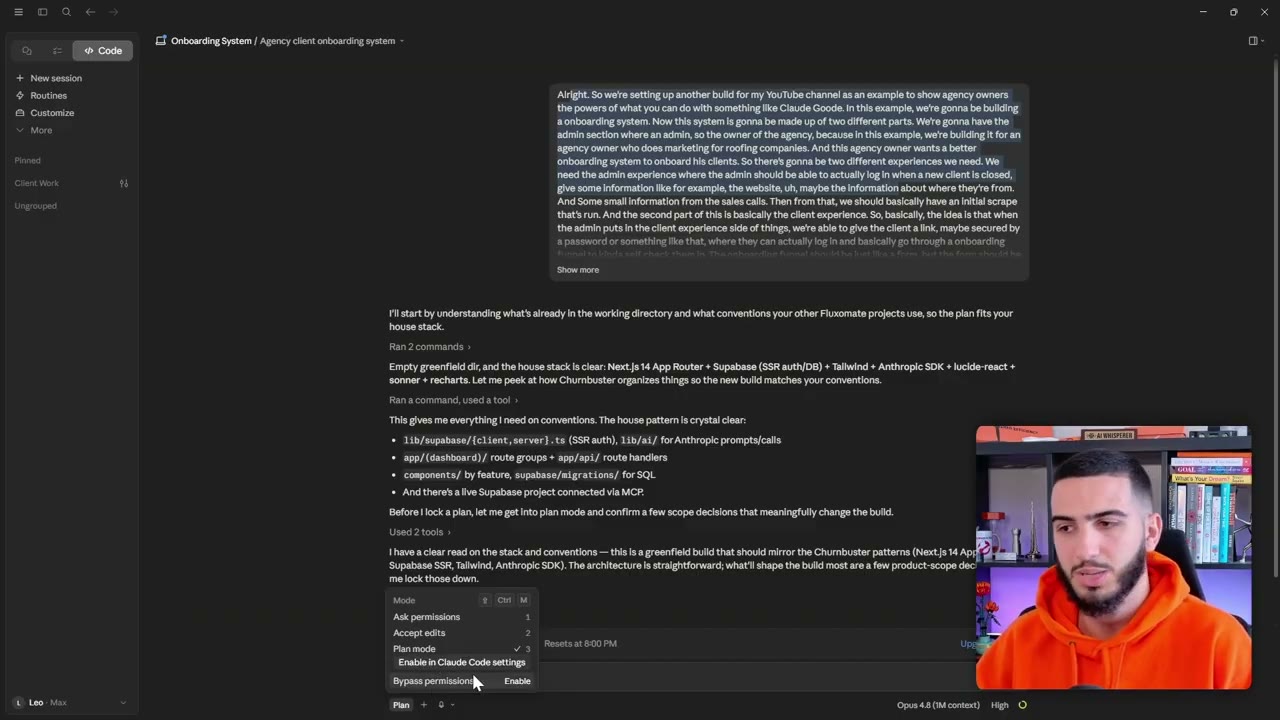
Use plan mode for this first step. Claude comes back with questions, and each answer shapes the build.
- Which post onboarding outputs to build. The video picks all four: a deep research brief, video ad scripts, image ad concepts and kickoff call scripts.
- How to scrape the client's website. The video uses Claude's own web search rather than a scraping service.
- How the client reaches the funnel. A password protected link.
- Where the data lives. A local project, to keep the demo simple, instead of setting up a hosted database.
- How to connect Google Drive and the CRM sheet. The video chooses the real Google APIs rather than a mock.
Why spend longer on the plan before building?
The first plan arrived quickly, and that made us wary. It is a big build, and a rushed plan means more fixing later. So we read it only to confirm Claude had understood what we wanted, not to judge the technical side, then replied in natural language with the points that were missing.
Going back and forth at this stage is cheap. Accepting the plan with auto mode switched on starts the build. The first generation took roughly twenty minutes, and it is a whole small piece of software, so that is reasonable. Do not sit and watch it. Work on something else and come back when Claude says it is ready to review.
You can also split the work. In the video the admin side and the onboarding side were built in two separate chat windows at the same time, and a team might keep around ten chats open, moving between them to give feedback.
How do you connect the APIs and keys?
Once the first version exists, ask Claude for a step by step breakdown of what you need to make it live. It listed three kinds of keys: an Anthropic key to power the AI, an image generation key, and Google credentials for Drive and Sheets. An API key is effectively a password that lets the app use a service.
Claude gives the links and the steps, so you do not need to work anything out yourself.
- Create an Anthropic API key, give it a name such as onboarding, and copy it.
- Create an account with your image generation provider, create a key for the onboarding flow and copy it.
- In the Google Cloud console, create a project for the onboarding flow.
- Under APIs and services, open the library and enable the Google Drive API and the Google Sheets API. The Google Docs API can be enabled too, since you may need it.
- Under credentials, create a service account, then open it, go to keys and create a new JSON key.
- Copy the email address of the service account.
- Create an example Google Drive folder and an example Google Sheet to act as the CRM. Share both with the service account email as an editor.
- Copy the folder ID and the sheet ID. Name the sheet tab clients, because the app expects that.
- Paste every key and ID into the environment file in the project. You can also ask Claude to do this for you.
How do you keep API keys safe?
Treat keys the way you treat a password to a social account. Do not paste them into public places, send them to people or show them on screen. Anyone holding a key can reach the back end of the app and run up charges, for example by generating images. The keys in the video were shown only because they were deleted before publishing.
What should you test first, and what did it produce?
Test the admin side first. Log in with the admin password, open the dashboard and add a test client with a company name, a contact email, a website, a location and a note from a sales call. Then choose to add the client and run the automations.
Three things ran: a Google Drive workspace was created with its sub folders, the client's website was scanned, and a row was added to the CRM sheet. One flaw showed up straight away. The CRM got a new row instead of updating the client's existing one, which went on the fix list.
Next test the client side. Open the invite link, enter the password and work through the funnel. It greeted the client by name and pre filled details it already knew, such as years in business. The steps covered business details, services, service area, the type of work they want, the brand feel, what makes them different, goals, a monthly ad budget and file uploads for a logo, job photos and a team photo. After review and submit, the client sees a confirmation and the admin view marks the client as completed with the submission and files attached.
Then open the AI studio section. Running the deep research brief and the image ads on the first client produced research and ad concepts. The research was mostly correct, and the competitor section was useful. But there were problems: the image ads could not be opened in the interface, the logo looked off, the wrong image model was being used, and there was no place to edit your playbooks.
How do you fix what is missing?
Write the problems into one feedback prompt in natural language and send it. In the video that meant using the correct image model, making the ads viewable, and adding a way to change the agency playbooks. After the update, a second test client went through the whole flow.
This time the Drive workspace appeared with sub folders for brand assets and ad creatives, and the generate all button produced video scripts for short form platforms, a kickoff script and image ads. The scripts pulled facts from the form, such as years in business, a warranty and same day inspections. The ads used the logo, a before and after image and the commercial focus the client had chosen, although some proportions were off. A playbooks section now shows the positioning, ad creative and kickoff call playbooks, and changing them changes what the app generates.
One more fix was noted: the research should run before the scripts, so the scripts can use it. Your team then starts from a produced draft to edit, not a blank page.
What can you add next?
This is a proof of concept. It runs locally, it has not been deployed and it is not perfect. Deploying properly takes more work. The video lists sensible next steps:
- Create a GoHighLevel sub account automatically.
- Upload generated creatives straight into the client's Google Drive folder.
- Connect Slack or another messenger to send client messages.
- Connect your task management system to create tasks for client success managers.
- Let you give feedback on creatives or ask for more like a chosen one.
Questions people ask
Do you need to code to build an onboarding portal with Claude Code?
No. The prompts in the video were spoken in plain language, and Claude wrote the code. You still need to test it, give feedback and handle the keys and accounts it asks you to set up.
What accounts and keys does the portal need?
The build needed an Anthropic API key for the AI, a key for image generation, and Google Cloud credentials with the Drive and Sheets APIs enabled. A Google Drive folder and a Google Sheet are shared with the service account so the app can write to them.
What happens when a client completes the onboarding form?
Their answers and uploaded files are attached to the client in the admin view, and the status changes to completed. From the AI studio you can then generate a research brief, video scripts, image ads and a kickoff call script based on their answers and your playbooks.
Is the portal ready to give to real clients?
Not as built in the video. It is a local proof of concept that was not deployed, and it had known gaps such as the CRM row not updating and the design needing work. It shows how quickly a first version comes together, and the rest is feedback and deployment.
Rather have it built for you?
Fluxomate builds internal tools and AI agents for agencies. On your stack, owned by you.
See if you qualify